
Clash for Windows Setup Guide
After installing Clash for Windows, you usually need to import a config file, select a node, and enable the system proxy.
Add a Config File
Clash for Windows commonly uses two config sources:
- Remote subscription URL
- Local config file
A remote subscription URL is usually provided by a subscription service. A local config file is usually a .yaml or .yml file. After importing a config, the app can display nodes and rule groups.
Remote Subscription URL
Copy the Clash subscription URL provided by your service provider.
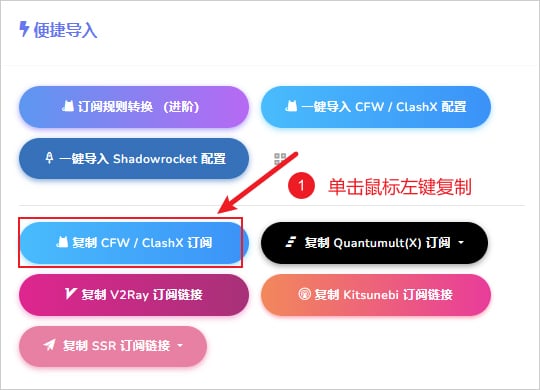
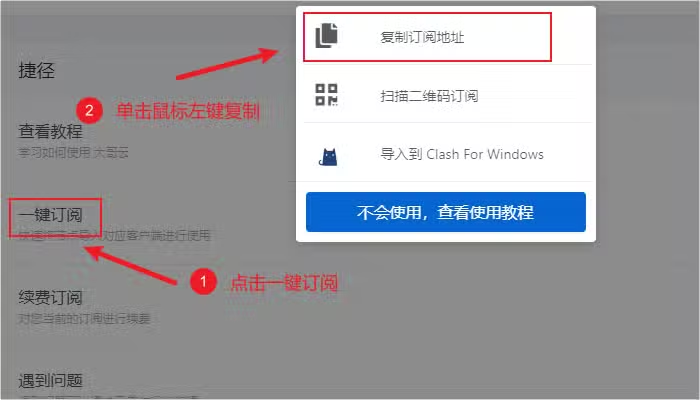
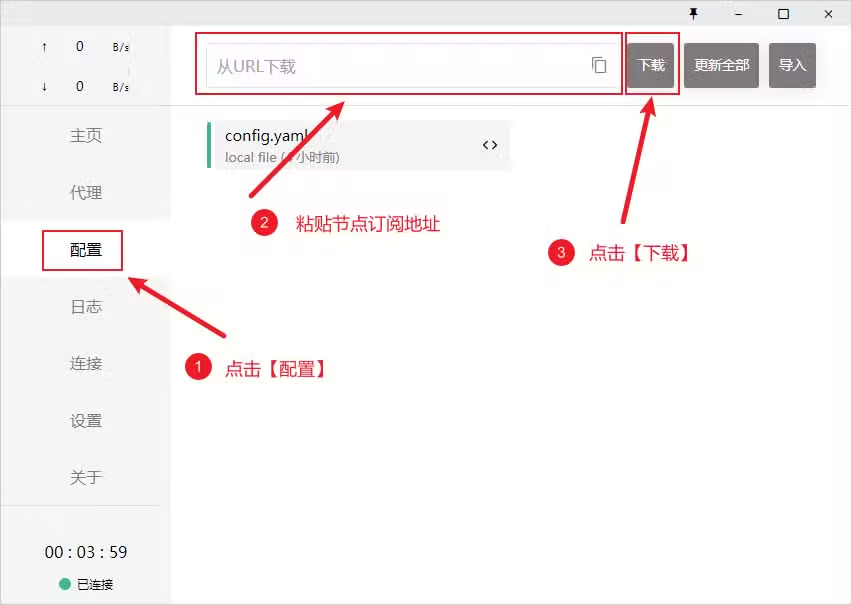
Open Profiles or Configuration, paste the URL into the top input field, then click Download. After the download finishes, click the imported profile to activate it.
If you do not have a subscription URL yet, see Subscription Service Reviews. Compare price, protocol support, node regions, usability, support response, and refund rules instead of relying only on speed claims.
Local Config File
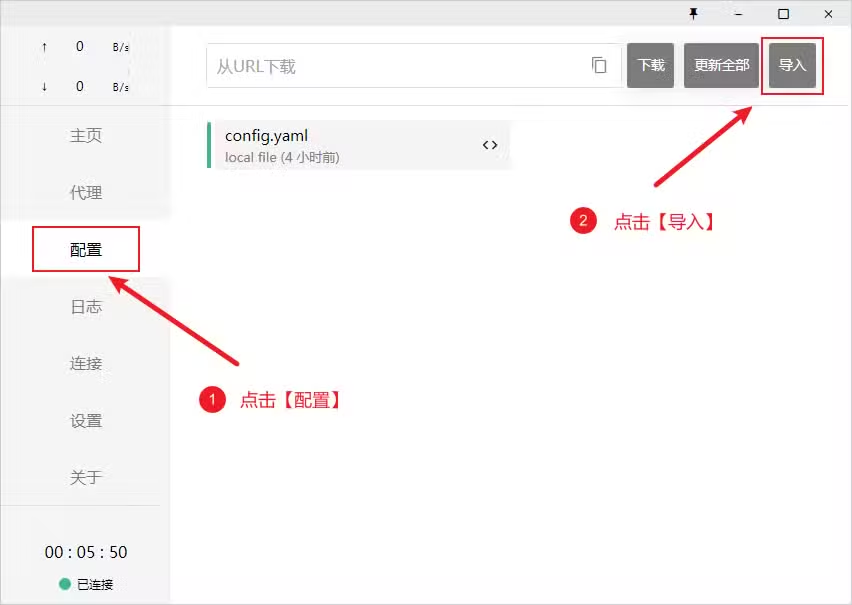
Use a local config file when URL import fails or when you maintain the config manually. Download the config file in your browser, then drag it into Clash for Windows or click Import.
Select a Proxy Node
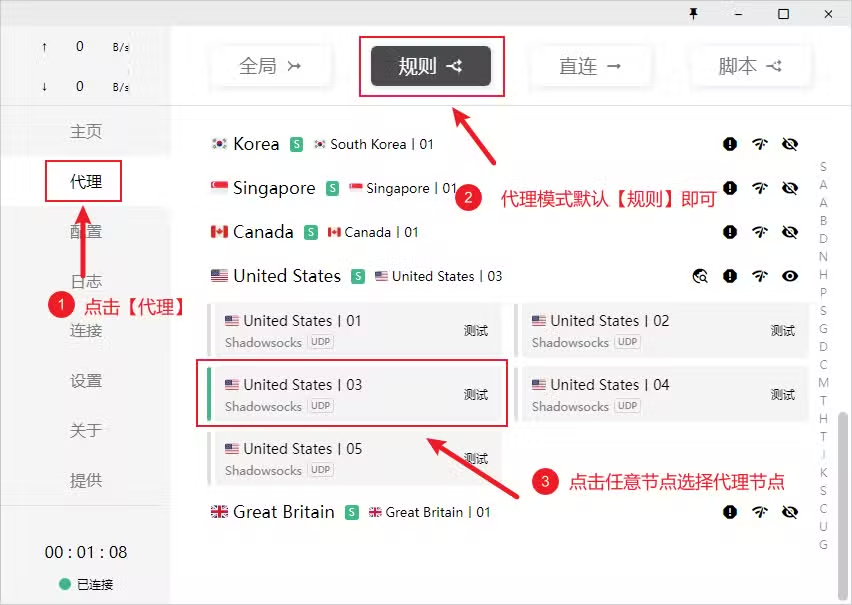
After importing a config, open the Proxy tab. The default proxy mode is usually Rule.
Common modes:
- Rule: Requests are routed according to the config rules
- Global: All requests are sent through the proxy server
- Direct: All requests connect directly to the destination
- Script: Requests are routed by a custom script
For most users, Rule mode is the best starting point. It reduces unnecessary proxy traffic and keeps routing easier to manage.
Then select a node from the expanded node group.
Enable System Proxy
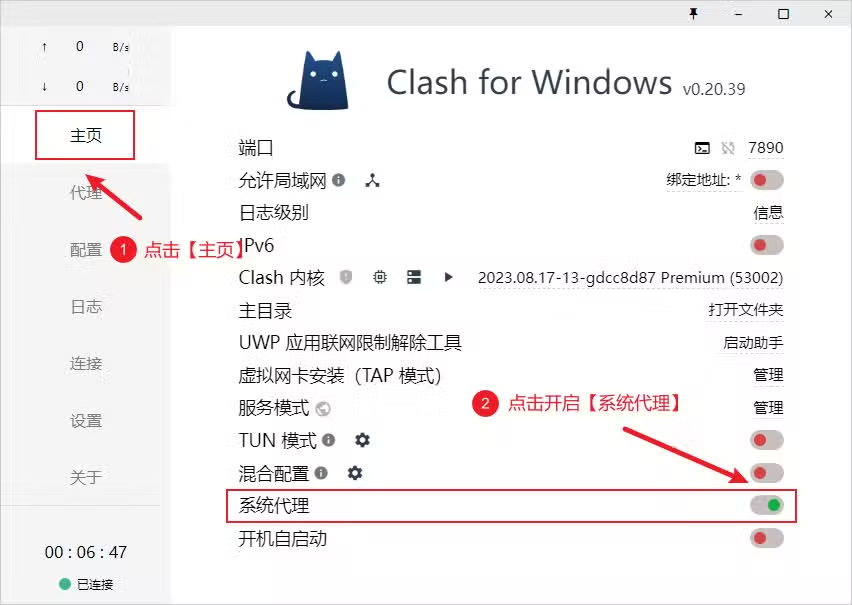
Open the General or Home tab, find System Proxy, and turn it on. The toggle is usually green when enabled.
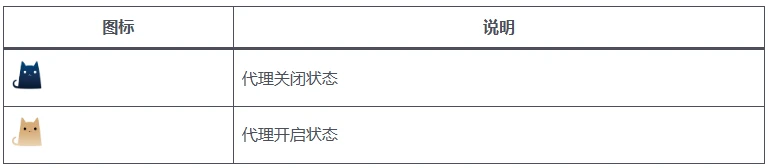
After enabling the proxy, the system tray icon changes. The image below shows common icon states.
Start on Boot
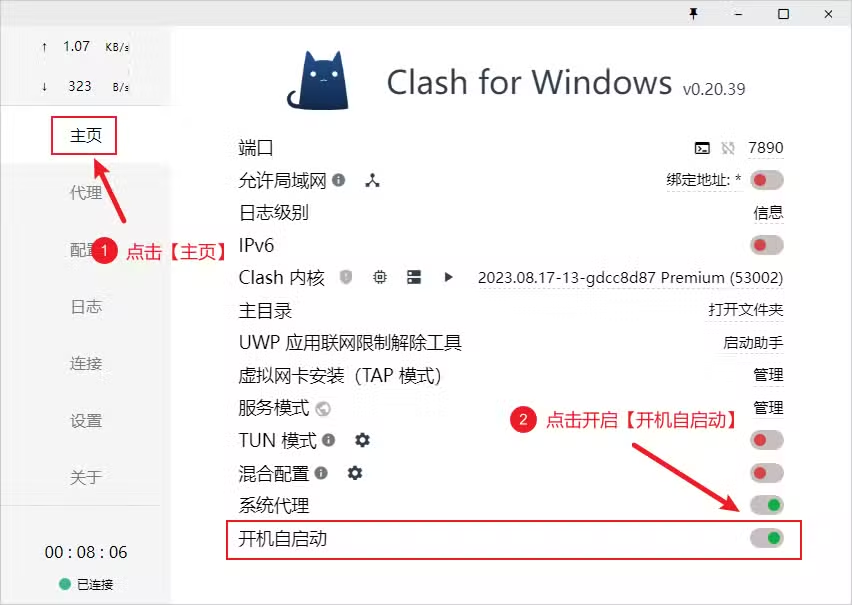
If you want Clash for Windows to run after Windows starts, open the main page and enable Start with Windows or Startup automatically.
Update Config Files
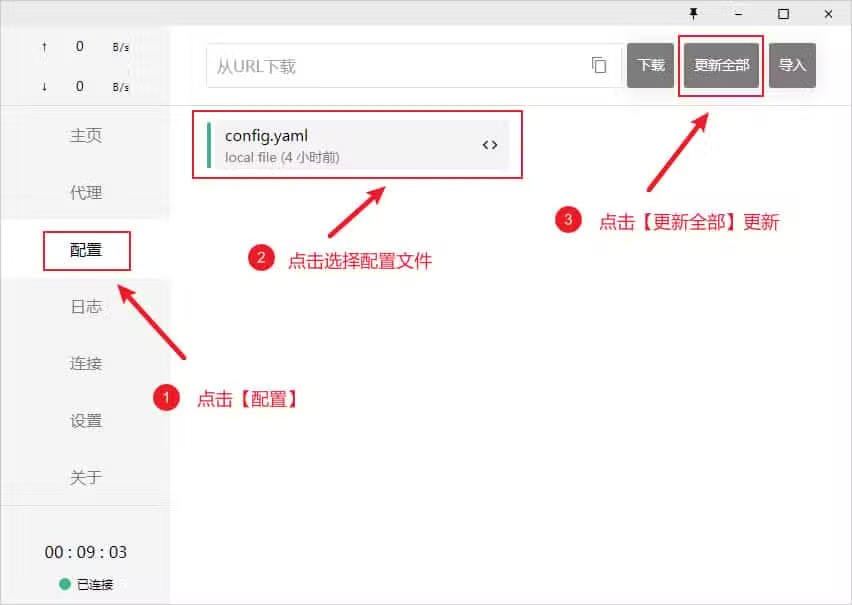
Nodes and rules in a subscription may change. Open the Profiles or Configuration tab and click Update All to refresh all profiles.
Common Issues
- Import fails: check whether the subscription URL is complete or has been reset
- No nodes appear: check whether the profile downloaded correctly or the subscription expired
- Node unavailable: switch to another node or ask the service provider for status
- Pages do not load: confirm
System Proxyis enabled and proxy mode isRule - App fails to start: reinstall the app or see the Chinese localized build notes